Parameters
How many icon actions show before the overflow button.
Whether the overflow menu starts open. Changing it later morphs the toolbar open or closed.
The colour of the icons and the menu's labels.
How much the glass frosts what's behind it.
How strongly the glass bends what's behind it near its edges, from flat to the most its rim can show.
How much of the tint colour shows in the glass.
How bright the lit edge of the glass is.
How much shadow the toolbar casts on what's below it.
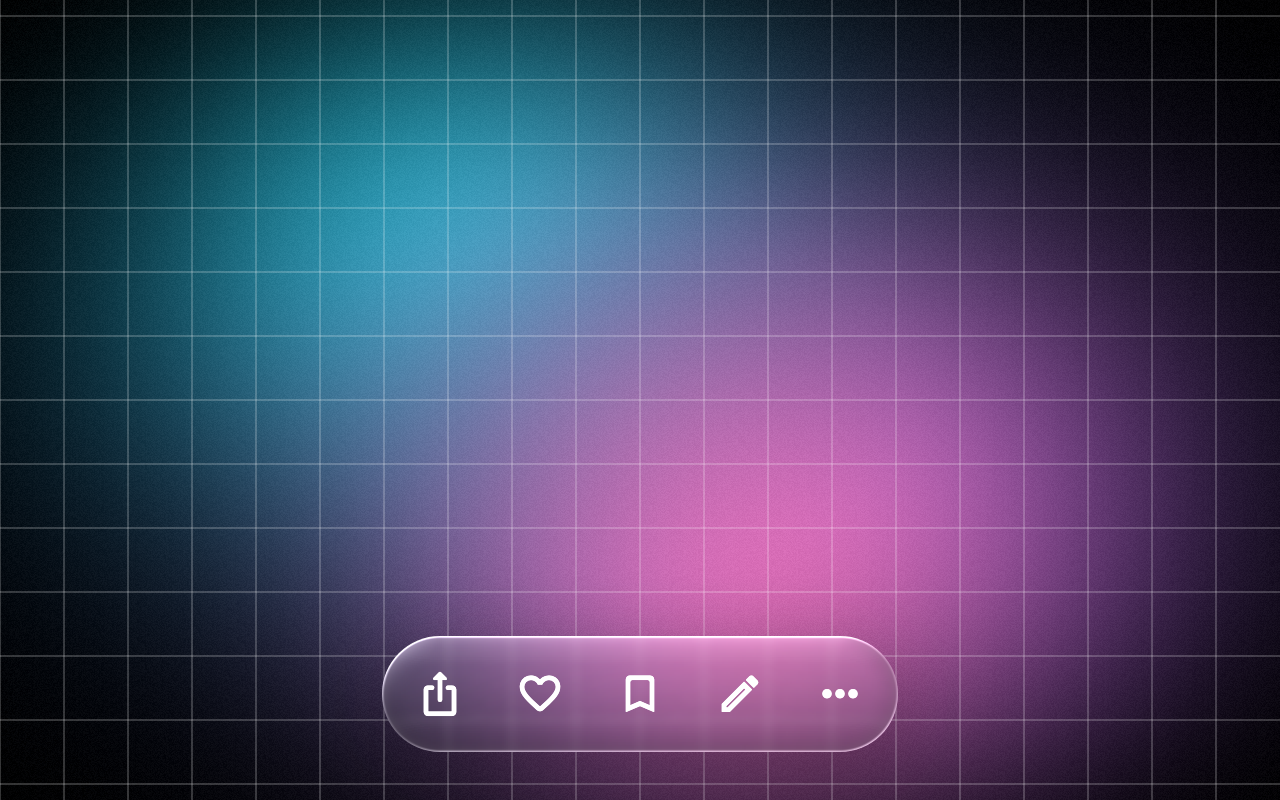
Loading Preview…
In the browser this Preview is drawn from a snapshot of the scene behind it. On iOS and Android the Export works on your real content, live.
Send to your coding agent
Add Sheen's MCP server once, then paste the prompt. No key or account needed.
Run in your project (Claude Code)
claude mcp add --transport http sheen https://sheen.ciroapps.com/api/mcp
Then ask your agent
Use the Sheen MCP server to add the Floating Glass Toolbar Component to this Flutter app. Call get_export with componentId "floating-glass-toolbar" and parameters {"actionCount":4,"icon1":"share","icon2":"heart","icon3":"bookmark","icon4":"edit","menuCount":3,"menuLabel1":"Copy link","menuLabel2":"Duplicate","menuLabel3":"Add to album","menuLabel4":"Hide","open":false,"iconColor":"FFFFFF","blur":4,"refraction":0.7,"tint":"FFFFFF","tintStrength":0.08,"rim":0.7,"shadow":0.4}, then follow the install steps it returns. (Tuned in the Sheen Playground: https://sheen.ciroapps.com/c/floating-glass-toolbar?actionCount=4&icon1=share&icon2=heart&icon3=bookmark&icon4=edit&menuCount=3&menuLabel1=Copy+link&menuLabel2=Duplicate&menuLabel3=Add+to+album&menuLabel4=Hide&open=false&iconColor=FFFFFF&blur=4&refraction=0.7&tint=FFFFFF&tintStrength=0.08&rim=0.7&shadow=0.4)